Recently in Windows 7 Category

A new survey shows that businesses are increasingly planning their move to Windows 7, with more than half of those questioned planning to have some machines running the operating system in their corporations by the end of the year.

The survey, conducted of 923 businesses in January, found that 16 percent are already running some Windows 7, with a further 42 percent planning to start their deployment by the end of 2010.

923 does not the universe make, but it's encouraging news. Since Microsoft's announcement that Windows 7 SP1 is mostly a roll-up release (with no announced release date), CIOs should feel more comfortable going to Windows 7 sooner rather than later.

Permalink | Leave a comment  »

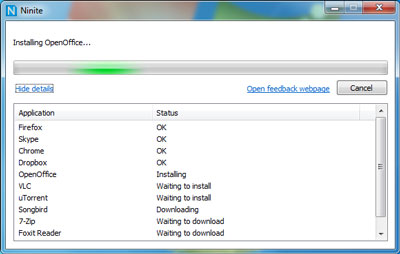
Easy way to get apps for Windows 7 - Nitrite

The easiest way to get apps.

  1. Pick the apps you want.
  2. Start your customized installer.
  3. You're done!

Ninite runs on Windows XP/Vista/7 and works
in the background 100% hands-free.

We install apps with default settings and
say "no" to browser toolbars and other junk.

All we do is install the latest versions of the apps
you choose. Not even Ninite is installed.

ninite.jpg

So you've upgraded to Windows 7 and now face the tedious task of downloading all your "crucial" applications (Firefox, Evernote, Dropbox, Flash, etc).

Nitrite makes the process less painful by allowing you to "package" many app installs at once. It beats tracking them down among multiple websites. And it's free!

Windows 7: 77 Windows 7 Tips

Windows 7 may be Microsoft’s most anticipated product ever. It builds on Windows Vista’s positives, and eliminates many of that OS’s negatives. It adds new functionality, too—all in a package that is less resource-hungry than its predecessor.
And whether or not you're upgrading from Vista or skipping it altogether and moving up from Windows XP, you'll need to know how to make the most of it in your environment. Here are 77 tips and tricks to get you there.

Windows 7 is awesome. Microsoft TechNet has a list of 77 Windows 7 Tips with the sysadmin/IT person in mind.

Posted via web from Evans's Posterous

Understanding Anywhere Access with Windows 7

With the increase in the number of mobile users, growing organizations are finding it difficult to maintain connectivity with their mobile workforce, when they are not connected to the network. This has an adverse impact on the productivity because the users are unable to connect to corporate resources easily. Also, because mobile users remain disconnected when they are outside the network, it is difficult for the administrators to keep the mobile computers up-to-date.

Windows 7 improves connectivity with the help of features such as Mobile Broadband DirectAccess, VPN Reconnect, and BranchCache.

This is huge! Windows 7 + Windows Server 2008 R2 enable mobile users to access the corporate LAN more readily and cut down the need to connect via VPN.

Outlook Anywhere allows Outlook 2007 to connect to the Exchange 2007 server using any Internet connection. It makes it simple to check e-mail during those 15 minutes you're at the airport connected via your Mobile Broadband card or those 30 minutes you're connected via wi-fi at Starbucks while enjoying your latte.

Anywhere Access goes one step (one giant step) forward to include the corporate LAN. While there will still be applications that require a VPN connection, there should be far fewer now.

Windows 7 can connect directly with your Mobile Broadband card and no longer requires the proprietary dialer application. Anyone with a Mobile Broadband card knows the dialers are not without their quirks and add an additional layer of complexity to the connection. That alone is worth the price of admission.

Administrators can push security updates or policy changes to the remote computer without waiting for the user to connect via VPN or return to the office. This should make all those machines more secure and reduce the amount of time spent applying updates when re-connecting to the LAN or connecting via VPN on a slower Internet connection.